Terminal User Interface (TUI)
Version: 2.2.0
The Textual framework builds the TUI. You start the TUI from the CLI.
Start the TUI
Quick workflow
- Start the TUI. Wait for the main layout. Complete the setup wizard if necessary.
- Press
1to8to change main views. You can see files, results, history, settings, and copilot. - Press
Tabto change focus. Press?to see active keyboard shortcuts. - Press
4to open the Methodology view. Verify your strategy before you start large organization jobs.
Overview
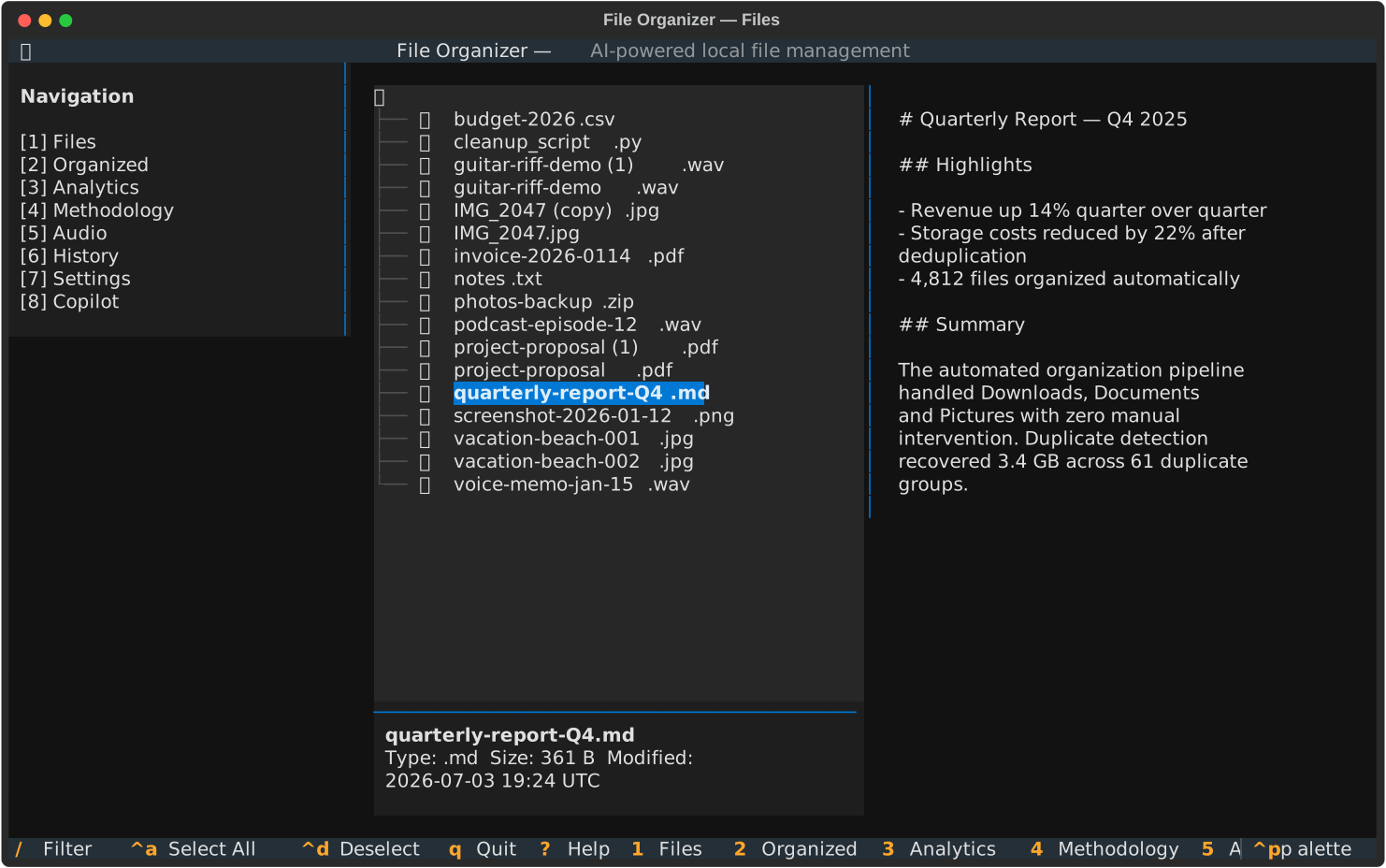
The Files view shows the directory tree, the metadata panel, and a live preview of the selected file.
This is a quick demonstration of the main views:
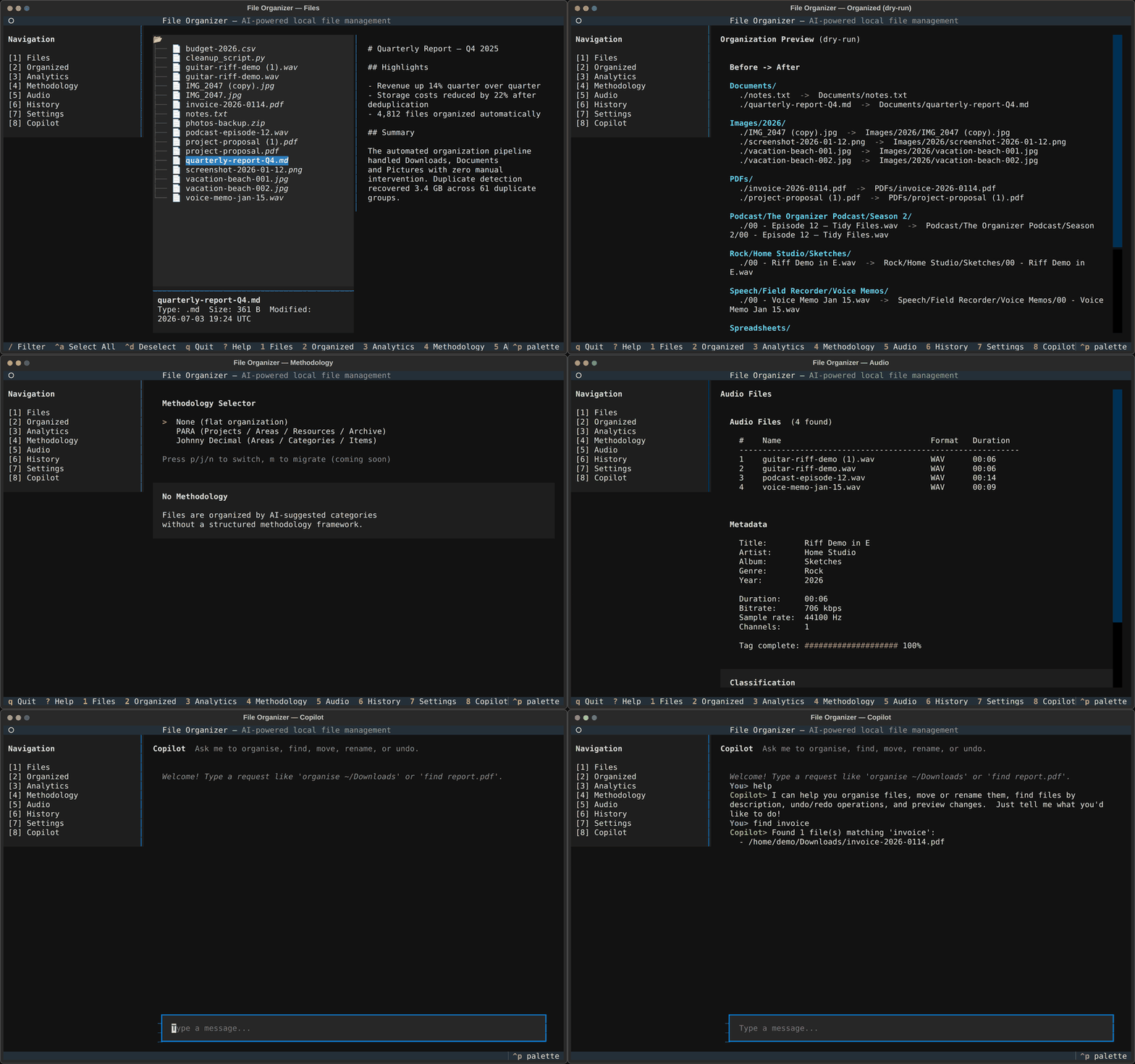
View gallery
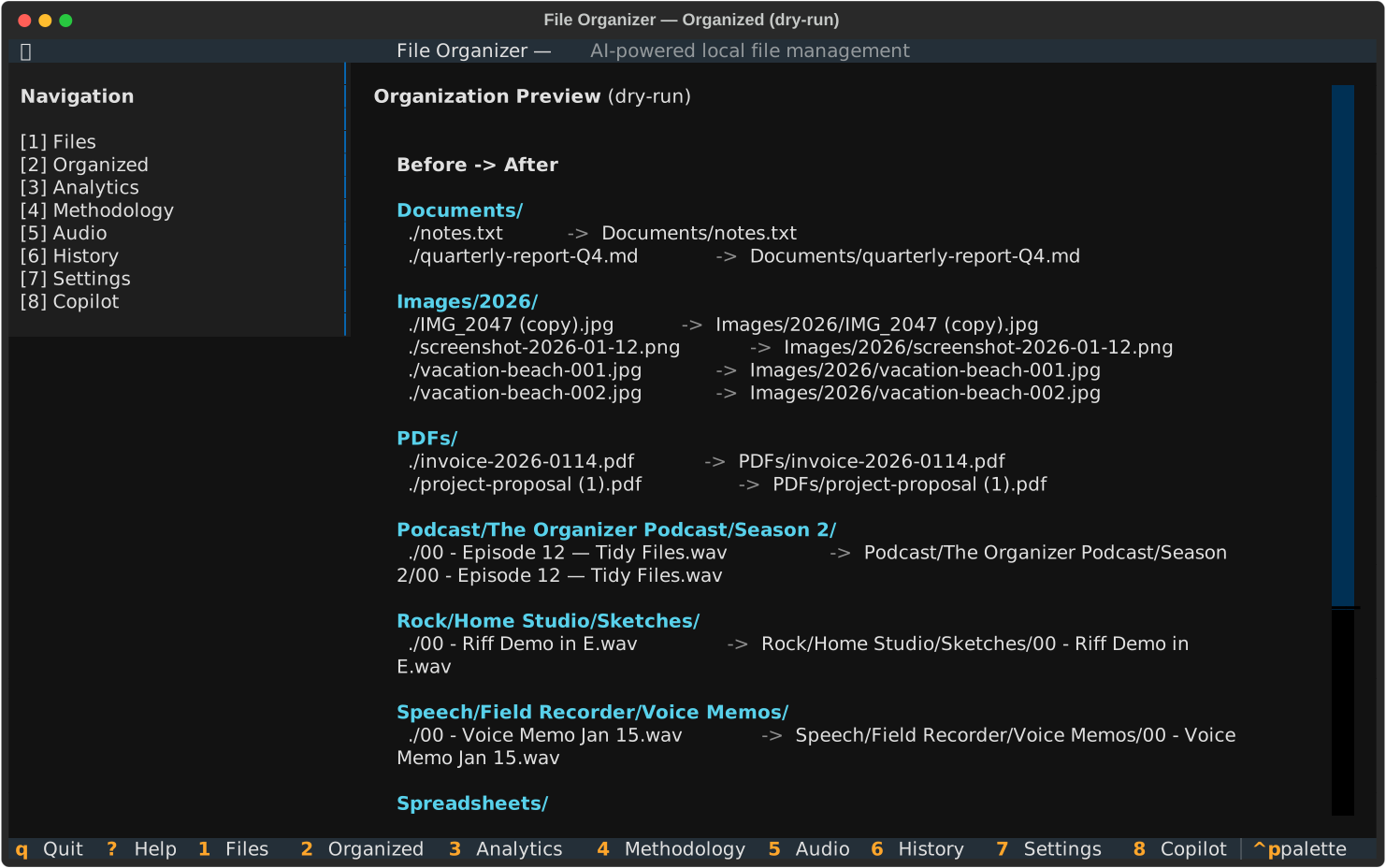
Organized (2)
This view shows a preview. It shows how the software will organize the current directory.
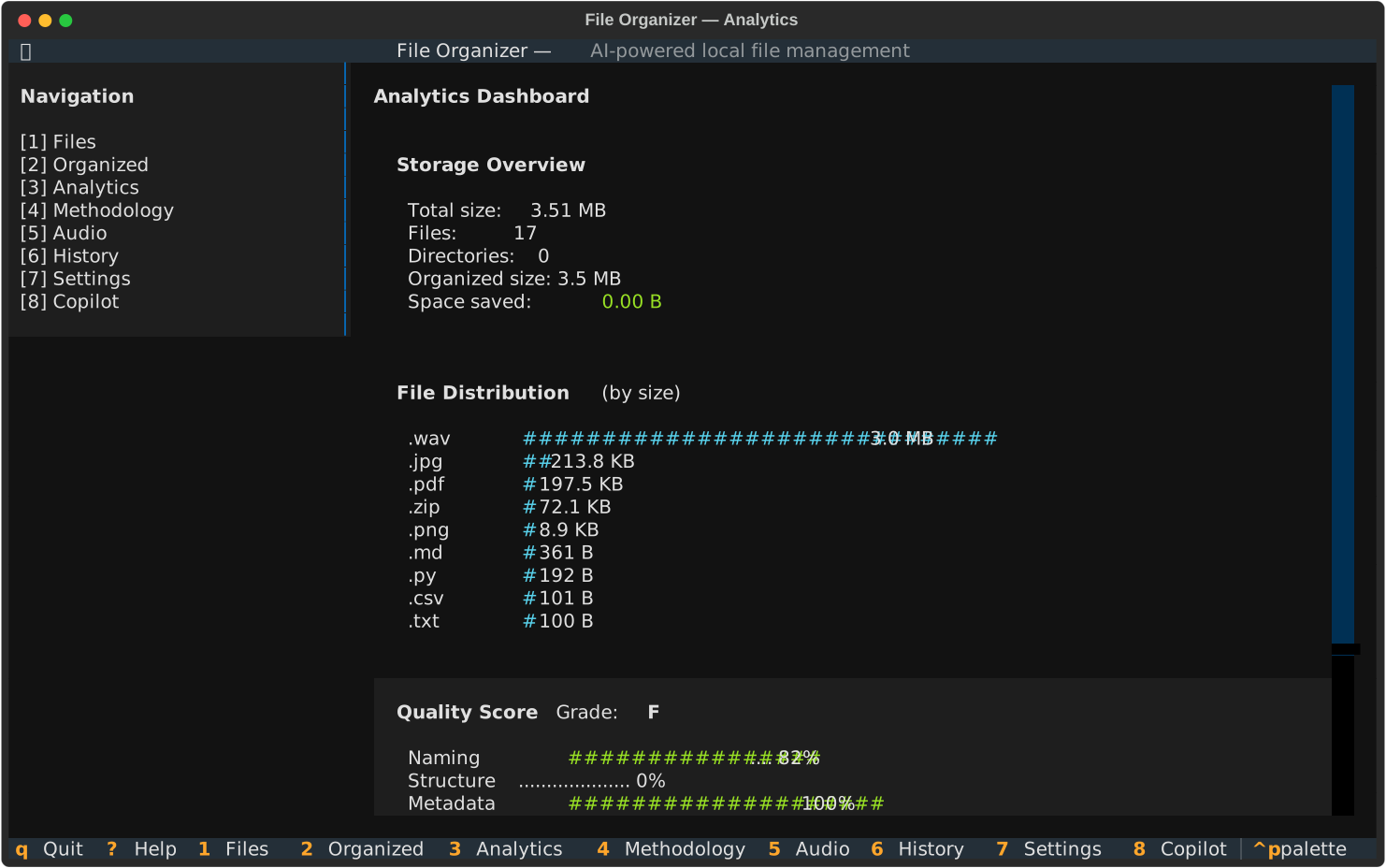
Analytics (3)
This dashboard shows storage data, file types, quality scores, and duplicate statistics for the current directory.
Methodology (4)
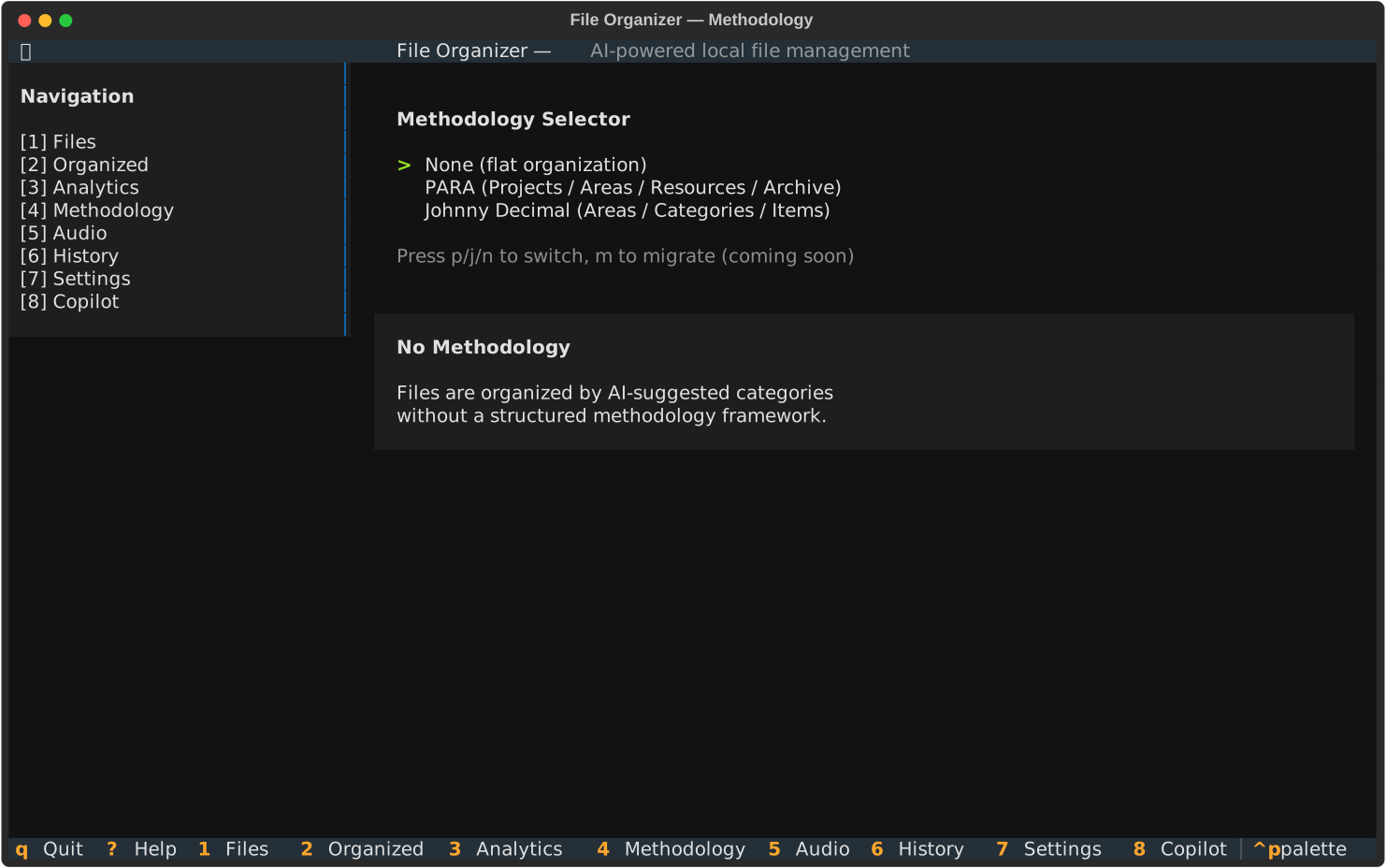
Select a flat, PARA, or Johnny Decimal organization system.
Audio (5)
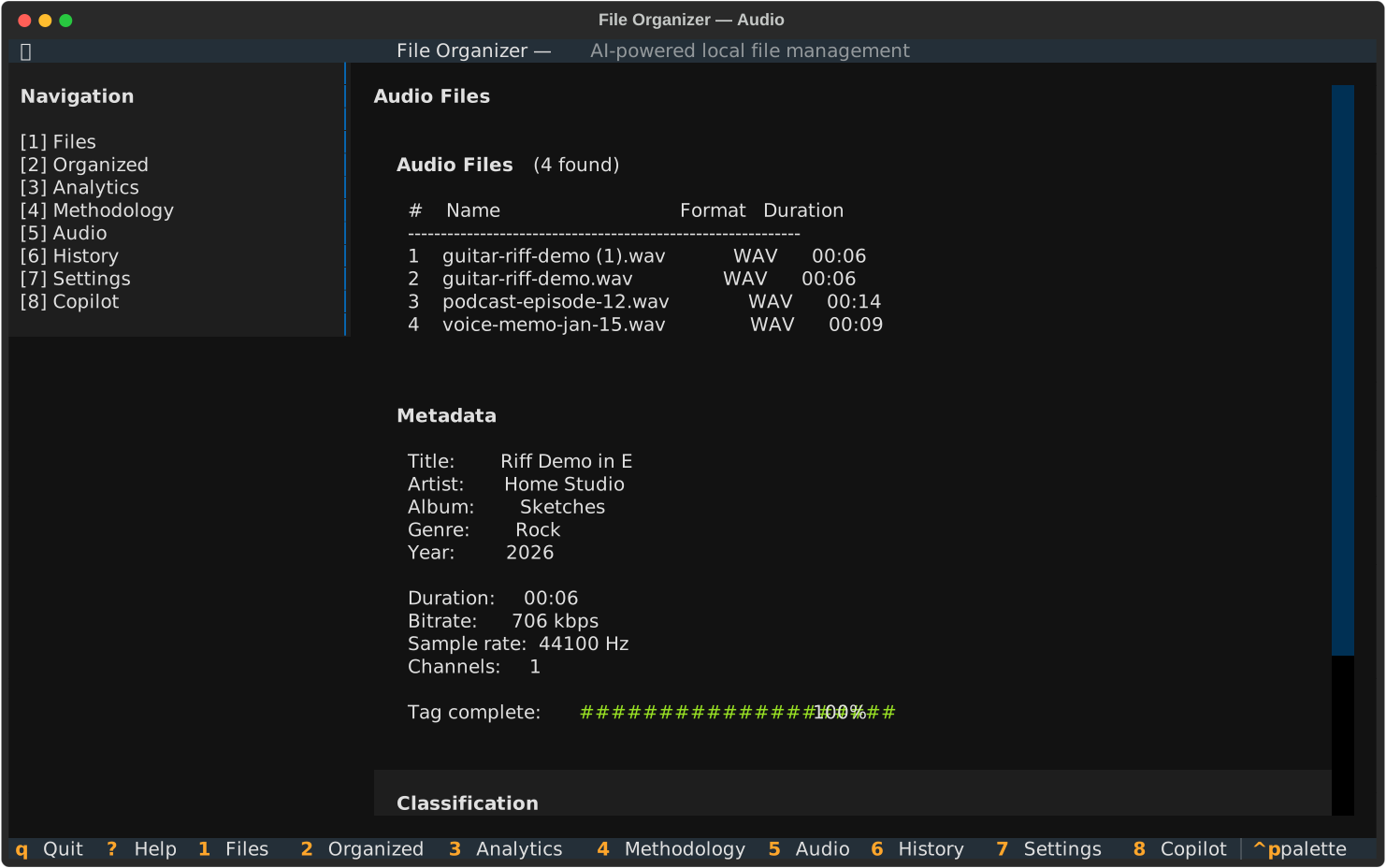
The software searches the directory for audio files. It shows tag metadata and classification for the selected file.
History (6)
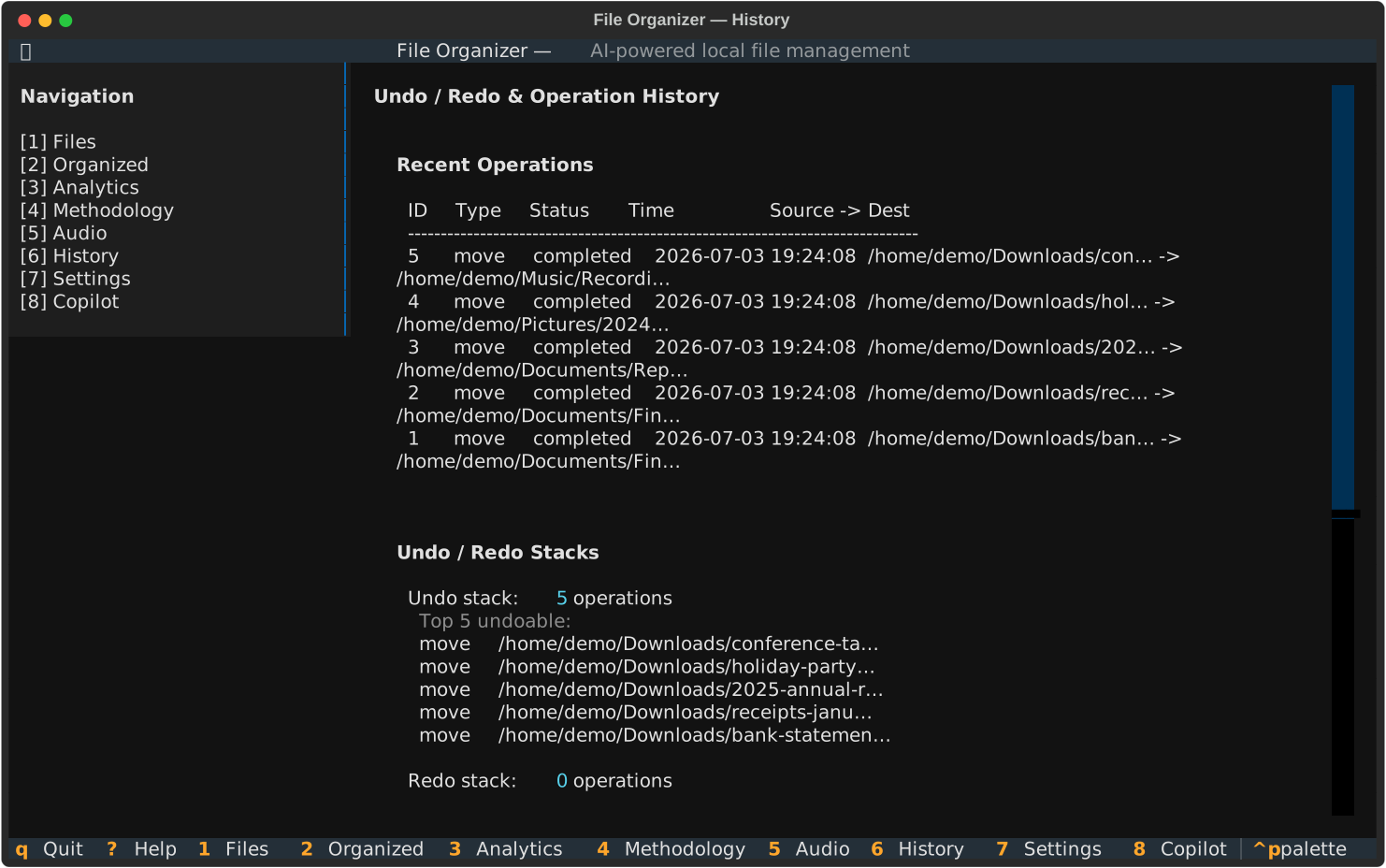
This view shows recent operations. It includes undo and redo options.
Copilot (8)
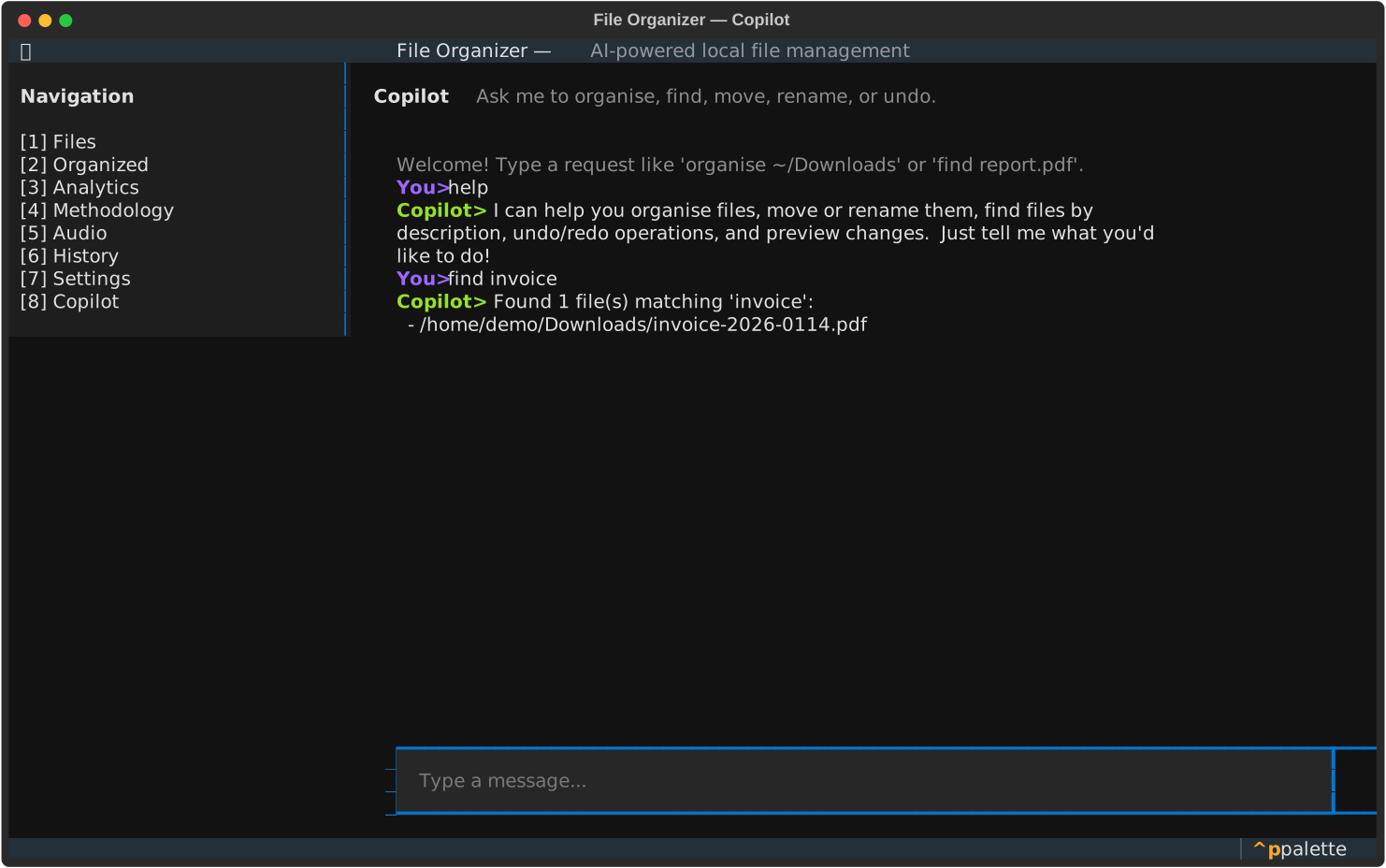
The local intent engine lets you manage files with natural language.
Keyboard shortcuts
These are the global keyboard shortcuts from FileOrganizerApp.BINDINGS.
Global
| Key | Action |
|---|---|
q / Ctrl+c | Stop the application |
? | Show or hide help |
Tab | Focus the next panel |
1–8 | Change the main view |
Ctrl+w | Complete the setup wizard |
View map (1–8)
| Key | View |
|---|---|
1 | Files |
2 | Organized |
3 | Analytics |
4 | Methodology |
5 | Audio |
6 | History |
7 | Settings |
8 | Copilot |
Local keyboard shortcuts
The TUI also has local keyboard shortcuts for specific views.
Examples:
- The file browser supports vim-style navigation keys (
h,j,k,l). - Press
/to toggle the file browser filter. - Other views have their own
BINDINGSproperties for local controls.
Setup wizard
If you did not complete the setup, the TUI shows the setup wizard. After setup, the main layout shows.
Troubleshooting
Incorrect colors or broken display
Symptom: The display shows raw escape codes. Colors are missing. The layout is broken.
Cause: The TERM environment variable is incorrect. The terminal does not support colors correctly.
Solution:
# Force 256-color or true-color mode
export TERM=xterm-256color
file-organizer tui

# If colors are incorrect, disable color
export NO_COLOR=1
file-organizer tui

# Force color output
export FORCE_COLOR=1
file-organizer tui
If you use a multiplexer (tmux, screen), configure it to allow true-color sequences:
# In ~/.tmux.conf
set -g default-terminal "tmux-256color"
set -ag terminal-overrides ",xterm-256color:RGB"
Blank screen
Symptom: The TUI opens but shows a blank window. It stays blank or recovers after a delay.
Cause: The terminal size is too small. The terminal reports incorrect dimensions.
Solution:
# Make the terminal window larger than 80x24
file-organizer tui

# If the screen stays blank, reset the terminal
reset
file-organizer tui
Setup wizard does not complete
Symptom: The setup wizard does not continue. Keyboard inputs have no effect.
Cause: You did not fill a required field. The terminal captures your keyboard inputs.
Solution:
- Press
Ctrl+Wto complete the wizard. - Make sure the wizard panel has focus. Click the panel or press
Tab. - If the problem continues, restart the TUI:
Multiplexer captures keyboard shortcuts
Symptom: Global shortcuts (Ctrl+C, Ctrl+W) do not work in tmux or screen.
Cause: The multiplexer captures the key sequences.
Solution:
In tmux, use send-keys to send the keys to the application:
Remove conflicting tmux bindings:
In GNU screen, press Ctrl+a then a to send Ctrl+a. Use stuff to send keys:
If problems continue, use a standard terminal window instead of a multiplexer.