File Organizer v2 User Guide
Introduction
File Organizer v2 is an AI-powered local file management system. It uses a privacy-first architecture. It operates locally by default. It supports optional cloud providers.
Essentials First Run (CLI)
Use this workflow to complete a first organization run. Do this before you explore advanced features:
Use fo undo after you record at least one organize run.
Do you prefer a browser? Start with the Web UI Quick Start.
Installation
Prerequisites
- You must install Python 3.11 or higher.
- You must install and start Ollama.
- You must have 8 GB RAM minimum. We recommend 16 GB.
- You must have 10 GB disk space for AI models.
Setup
# Clone the repository
git clone https://github.com/curdriceaurora/Local-File-Organizer.git
cd Local-File-Organizer

# Create a virtual environment
python3 -m venv venv
source venv/bin/activate  # On Windows: venv\Scripts\activate

# Install the package
pip install -e .

# Pull the required AI models
ollama pull qwen2.5:3b-instruct-q4_K_M    # Text model (~1.9 GB)
ollama pull qwen2.5vl:7b-q4_K_M           # Vision model (~6.0 GB)

# Verify the installation
file-organizer version
Optional Feature Packs
Use the canonical extras matrix:
Note
The audio and video packs require FFmpeg and optionally a CUDA-capable GPU. Read the Audio & Video Setup Guide to find detailed installation instructions, model selection data, and configuration steps.
Workflow Map (Quick Paths)
Use this routing table to jump directly to a workflow.
| Goal | Start here | Go deeper |
|---|---|---|
| Complete your first CLI organization run safely | Essentials first run | Core first run commands |
| Run Copilot for a folder and get actionable output | Copilot quick workflow | CLI copilot entry points |
| Navigate TUI quickly | Terminal UI | TUI keyboard map |
| Do rules-based batch review before applying changes | Rules batch review workflow | CLI rules entry points |
| Scan and resolve duplicates safely | Deduplication | CLI dedupe entry points |
| Manage profile-like setups across environments | Profile workflow (current stable path) | CLI profile behavior |
| Organize through the browser UI | Web UI | Web organization workflow |
| Launch and tune desktop mode | Desktop UI | Desktop launch workflow |
| Browse/install plugins | Plugin Marketplace | CLI marketplace entry points |
| Pick PARA vs Johnny Decimal | Methodology selection workflow | Johnny Decimal user guide |
CLI Commands Overview
File Organizer includes two equivalent commands: file-organizer and the short alias fo.
If you are a new user, start with setup, preview, organize, and undo. Then, explore the full command list.
| Command | Description |
|---|---|
organize | Move files from an input directory to an output directory. |
preview | Show organization changes without moving files. |
search | Find files by filename pattern or keyword. Use the optional --type filter. |
analyze | Examine a file and show AI-generated metadata. |
tui | Start the Terminal User Interface. |
serve | Start the web UI server. |
desktop | Open the native desktop window application. |
docs | Build or serve the project documentation. |
undo | Revert the last file operation. |
redo | Apply a previously undone operation again. |
history | Show the operation history. |
analytics | Show storage analytics and insights. |
version | Show the application version. |
config | Show and change configuration. |
model | Control AI models. |
autotag | Get auto-tagging suggestions and do batch operations. |
copilot | Start the AI assistant for file management questions. |
daemon | Watch files in the background and organize them automatically. |
dedupe | Find and resolve duplicate files. |
rules | Manage custom organization rules. |
suggest | Get smart file placement suggestions. |
update | Find and install application updates. |
api-keys | Make local API keys. |
marketplace | Find and install community plugins. |
benchmark | Start performance benchmarks. |
api | Start the REST API server. |
Organizing Files
Basic Organization
The organize command analyzes files in an input directory. It moves them to categorized folders in an output directory:
# Dry run first to preview changes
file-organizer organize ~/Downloads ~/Organized --dry-run

# Run the actual organization
file-organizer organize ~/Downloads ~/Organized

# Verbose output for debugging
file-organizer organize ~/Downloads ~/Organized --verbose
Previewing Changes
Use preview to get a quick dry-run view:
AI Tag Generation During Organization
organize and preview can ask the text/vision model to attach tags to each file as part of the same analysis pass, recorded per-file in the resulting plan. This is a separate mechanism from the heuristic autotag command family above — it costs one extra model round-trip per file and the tags come from the AI's own reading of the content, not from local heuristic scoring.
# Generate tags for every organized file
file-organizer preview ~/Downloads --generate-tags

# Nudge the model toward a tagging domain (same five presets as `autotag`: sfx, audio, code,
# descriptive, hierarchical) and/or give it free-text guidance
file-organizer preview ~/Downloads --generate-tags --tag-style descriptive --tag-prompt "focus on client names and project codes"

# Same flags apply to organize; on organize they're advanced options (see --advanced-help)
file-organizer organize ~/Downloads ~/Organized --generate-tags --tag-style code
--tag-style here reuses the same five preset names as autotag, but the effect is different: instead of a scoring boost, it adds a "favor terms fitting the '<style>' domain" hint to the model's prompt. --tag-prompt similarly becomes free-text guidance appended to the prompt (also capped at 500 characters). Both require --generate-tags; setting either without it is rejected. If you pass --plan to organize with a previously saved reviewed plan, omitting these flags inherits the plan's own tag settings — only flags you repeat on the command line override it.
Searching Files
Search through organized files by filename pattern or keyword:
Analyzing Individual Files
Examine what the AI detects about a specific file:
Terminal UI (TUI)
The TUI gives an interactive terminal interface to manage your files.
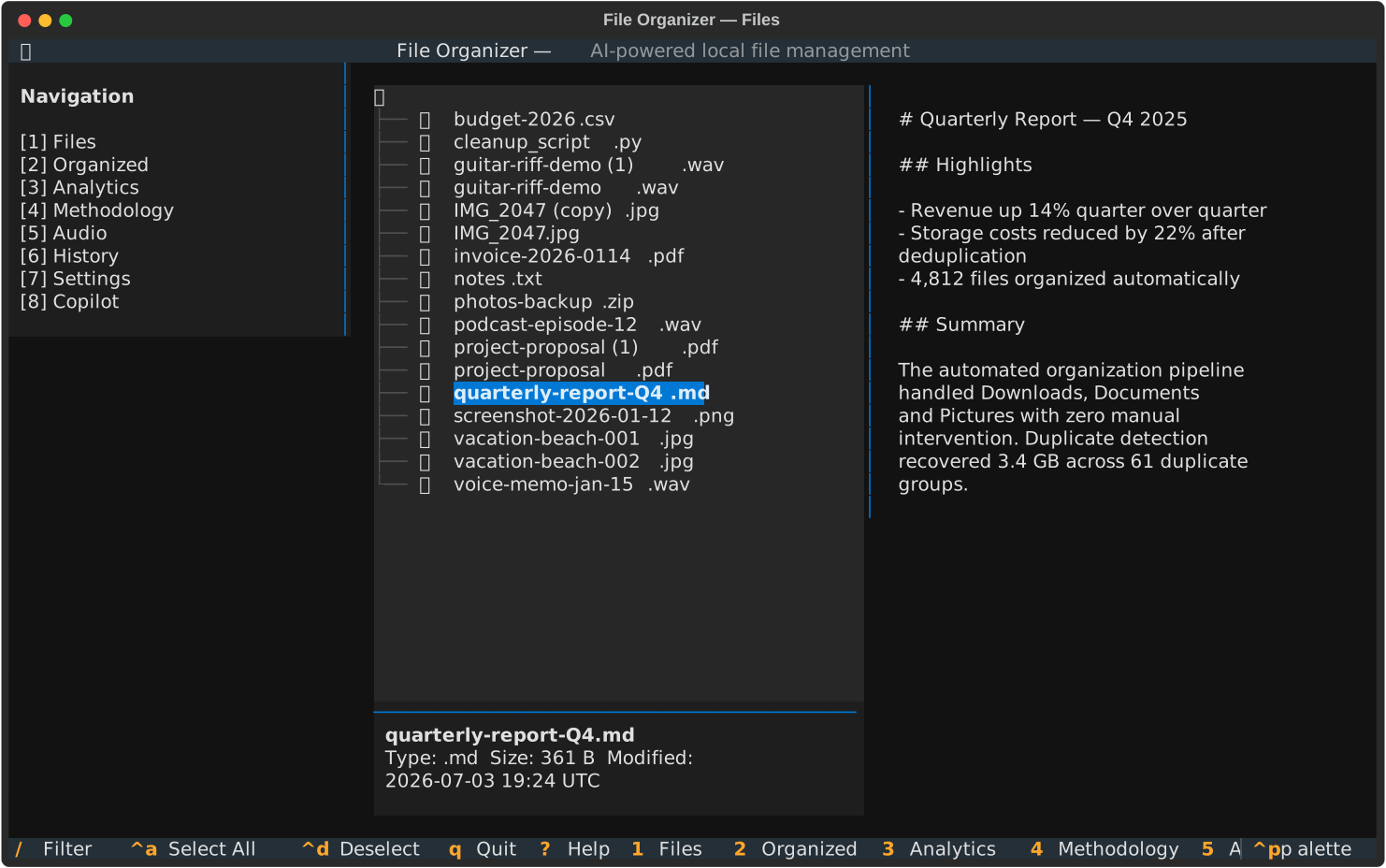
Launching the TUI
Views and Key Bindings
| Key | View |
|---|---|
1 | File browser |
2 | Organized |
3 | Storage analytics |
4 | Methodology |
5 | Audio |
6 | History |
7 | Settings |
8 | Copilot chat |
Navigation: Use arrow keys to move, press Enter to select, press q to quit, press ? for help.
Tip
The Audio view (key 5) includes transcription and analysis features. Read the Audio & Video Setup Guide to enable audio transcription.
Copilot
The Copilot is an AI assistant. It answers questions about your files and does management tasks with natural language.
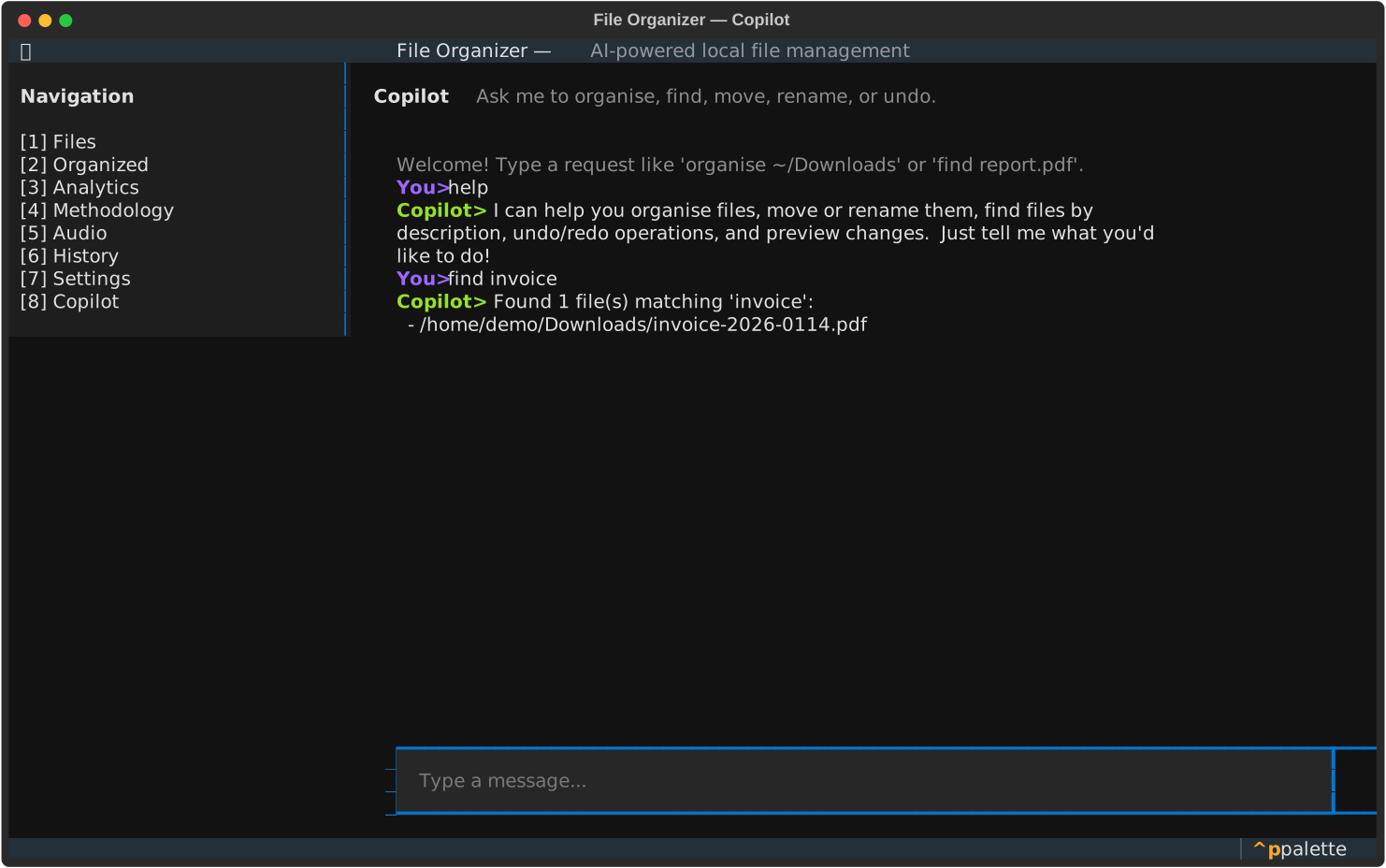
Interactive Chat (REPL)
# Start an interactive session
file-organizer copilot chat

# Specify a working directory
file-organizer copilot chat --dir ~/Documents
Single-Shot Mode
# Ask a single question
file-organizer copilot chat "How many PDF files are in my Documents folder?"
Quick workflow: ask, verify, and act
# 1) Start a scoped REPL
file-organizer copilot chat --dir ~/Documents

# 2) Ask for an actionable plan
# "Find duplicates and suggest cleanup order"

# 3) Apply the suggested command path outside chat
file-organizer dedupe scan ~/Documents
To find more command patterns, read CLI copilot entry points.
Daemon and Background Processing
The daemon monitors directories for new files. It organizes them automatically.
Starting the Daemon
# Watch a directory
file-organizer daemon start --watch-dir ~/Downloads --output-dir ~/Organized

# Run in foreground (useful for debugging)
file-organizer daemon start --watch-dir ~/Downloads --output-dir ~/Organized --foreground

# Adjust poll interval (seconds)
file-organizer daemon start --watch-dir ~/Downloads --output-dir ~/Organized --poll-interval 30

# Dry-run mode (log actions without moving files)
file-organizer daemon start --watch-dir ~/Downloads --output-dir ~/Organized --dry-run
Managing the Daemon
Organization Methodologies
File Organizer includes multiple organization systems. Configure these methodologies with the config edit command or the TUI settings view.
Default AI Organization
The default method uses AI. It analyzes file content and suggests categories based on the content itself. It does not only use file extensions.
PARA Method
Projects, Areas, Resources, Archive. This is a productivity-focused system:
- Projects: Active work with deadlines
- Areas: Ongoing responsibilities
- Resources: Reference materials by topic
- Archive: Completed or inactive items
Johnny Decimal
A numerical categorization system that uses XX.YY numbering:
- Areas (10-19, 20-29, ...): Broad categories
- Categories (X1, X2, ...): Specific sub-categories
- IDs (XX.01, XX.02, ...): Individual items
Quick workflow: choose a methodology
- Web UI (
/ui/organize) values: start withcontent_basedif you do not follow a folder system. Chooseparafor actionability. Choosejohnny_decimalfor stable numeric indexing. - CLI config values (
file-organizer config edit --methodology ...): usenone(content-based/default),para, orjd. - Start a dry run and compare the output quality before you commit:
Read Johnny Decimal getting started when you select a numeric methodology.
Deduplication
Find and resolve duplicate files with perceptual hashing (for images) and content-based comparison (for documents).
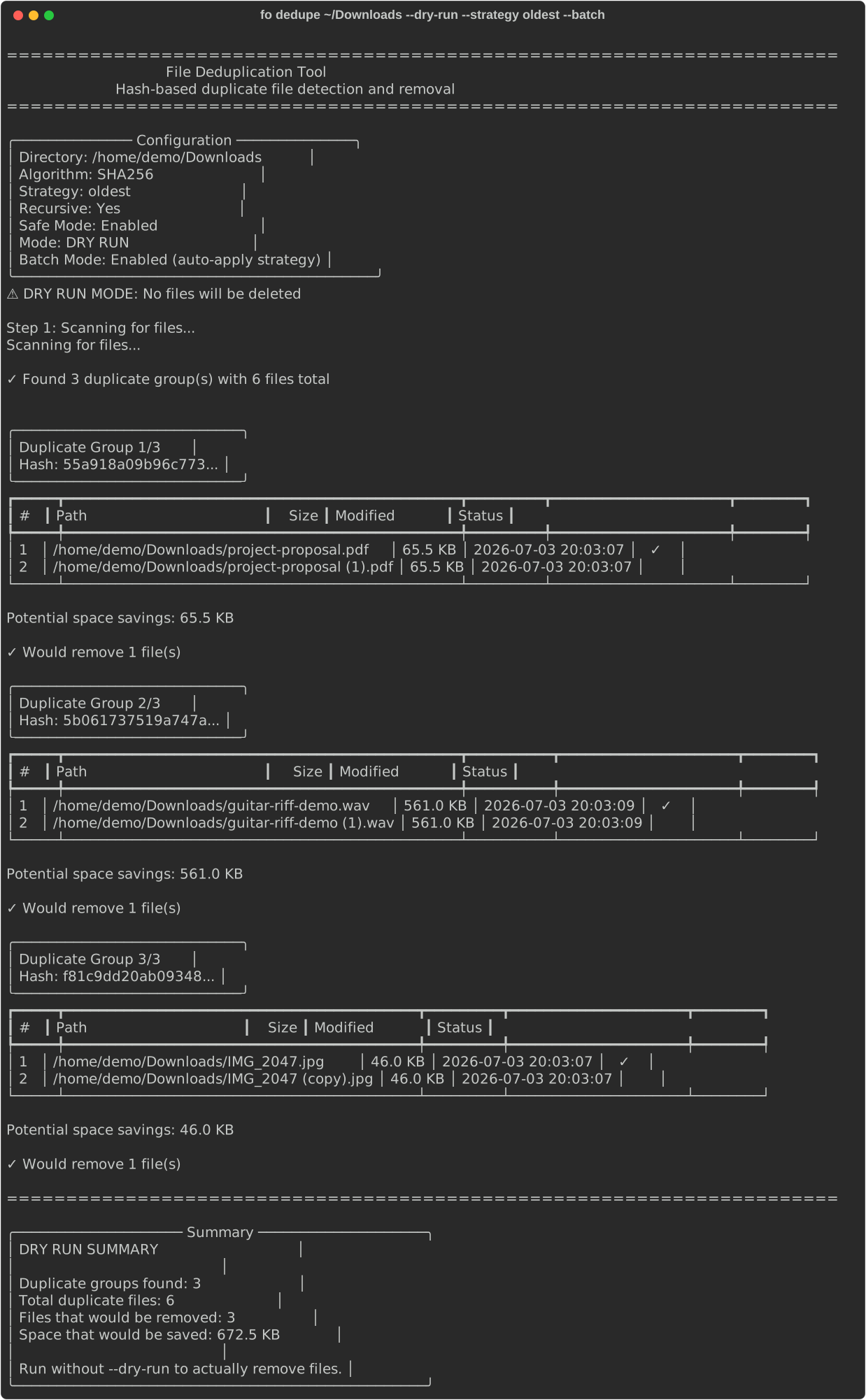
Scanning for Duplicates
Resolving Duplicates
Generating Reports
Note
Image deduplication requires the dedup optional pack: pip install -e ".[dedup]"
Auto-Tagging
The auto-tagging system suggests and applies tags to files. It uses heuristic analysis of filename, extension, directory, metadata, and content signals — no model call required. For tags generated by the AI model itself during organize/preview, see AI Tag Generation During Organization above.
Getting Tag Suggestions
Applying Tags
# Apply specific tags to a file
file-organizer autotag apply ~/Documents/report.pdf finance quarterly
Viewing Popular Tags
Batch Operations
# Tag files in batch
file-organizer autotag batch ~/Documents

# View recently applied tags
file-organizer autotag recent
Style Presets and Custom Prompts
autotag suggest and autotag batch accept --style/-s and --prompt/-p to steer which candidate tags score highest. Both flags are heuristic-only — they rerank and combine tags already extracted from filename, extension, directory, metadata, and content signals; they don't call an AI model.
# Boost sound-design vocabulary (whoosh, impact, riser, foley, ...)
file-organizer autotag suggest ~/SoundLibrary --style sfx

# Nudge ranking toward tags matching your own words (tokenized, case-insensitive)
file-organizer autotag batch ~/Projects --style code --prompt "backend services"
The five presets:
sfx(alias:audio) — doubles the score of any candidate tag found in a ~40-term sound-design vocabulary (whoosh,impact,ambient,foley,riser,drone,reverb,synth, and similar terms).sfxandaudioshare this exact vocabulary and boost — pick whichever name reads better for your library.code— doubles the score of candidates that are a known source-file extension or its language name (py/python,js/javascript,rs/rust, etc.), and additionally emits a compoundlang/<ext>tag (e.g.lang/py) from extension candidates whenever the file's own extension matches.descriptive— gives a modest 1.2x boost to longer tags (more than 6 characters) that came from the filename or directory rather than file content, favoring specific, human-readable labels over generic content keywords.hierarchical— emits compound<category>/<subcategory>tags by pairing each extension-derived tag with each directory- or content-derived tag (e.g. a.pdfin acontracts/folder can producepdf/contracts), for building a nested tag taxonomy.
--prompt applies independently of --style and works with every preset (or with no preset at all): each word in the prompt (split on spaces, hyphens, underscores, and periods) that matches an already-extracted candidate tag gets a 1.5x score boost. It doesn't add a model call — it only re-weights the same heuristic candidates.
--tag-prompt on organize/preview (below) is a distinct, LLM-facing prompt — see the next section for that path.
Organization Rules
Rules let you stop AI decisions and use explicit patterns. When a file matches a rule, the software organizes it with that rule instead of the AI suggestion.
Listing Rules
Adding Rules
Previewing and Managing Rules
# Preview what a rule would match in a directory
file-organizer rules preview ~/Documents

# Remove a rule
file-organizer rules remove my-rule

# Export rules to a YAML file
file-organizer rules export --output rules-backup.yaml

# Import rules from a YAML file
file-organizer rules import rules-backup.yaml
Rules batch review workflow
# 1) Preview rule effects against current files
file-organizer rules preview ~/Documents --set default

# 2) Review effect in dry-run apply mode
file-organizer rules apply ~/Documents --set default --dry-run

# 3) Run the real apply when satisfied
file-organizer rules apply ~/Documents --set default
Read CLI rules entry points to find all command options.
Plugin Marketplace
Use marketplace commands to find and install plugins.
# Browse
file-organizer marketplace list --page 1 --per-page 20

# Inspect and install
file-organizer marketplace info example-plugin
file-organizer marketplace install example-plugin

# Verify installation and updates
file-organizer marketplace installed
file-organizer marketplace updates
Read CLI marketplace entry points for all subcommands.
Smart Suggestions
Get AI-powered suggestions for where you should put files. The software uses your existing directory structure and past organization patterns.
Getting Suggestions
# Suggest placements for files
file-organizer suggest files ~/Unsorted

# View detected patterns
file-organizer suggest patterns ~/Unsorted
Applying Suggestions
Analytics
Look at storage analytics, file distribution, and organization metrics.
Named Configuration Profiles
Use the config command to inspect or edit named profiles:
# Show the current profile
file-organizer config show

# Show a specific profile
file-organizer config show --profile work

# Edit a specific profile
file-organizer config edit --profile work --temperature 0.7
Profile workflow (current stable path)
In current mainstream installs, profile workflows use named config profiles and settings import/export procedures.
# 1) Inspect profile-specific settings
file-organizer config show --profile work

# 2) Adjust profile behavior
file-organizer config edit --profile work --temperature 0.7
Use Web Settings import/export for UI-based transfer procedures. To find the runtime status of CLI profile subcommands, read CLI profile behavior.
Undo and Redo
The software tracks all file move operations. You can reverse them.
# Undo the last operation
file-organizer undo

# Redo the last undone operation
file-organizer redo

# View operation history
file-organizer history
Web UI
File Organizer includes a browser-based interface to manage files visually.
Starting the Web Server
# Start with default settings (localhost:8000)
file-organizer serve

# Specify host and port
file-organizer serve --host 0.0.0.0 --port 9000
Then, open http://localhost:8000/ui/ in your browser. If setup is incomplete, the web UI goes to http://localhost:8000/ui/setup.
Quick path: plan, review, run, and export from Web Organize.
Desktop UI
File Organizer includes a native desktop window application to manage files.
Launching the Desktop Application
# Launch with default settings
file-organizer desktop
# fo desktop

# Specify custom window properties
file-organizer desktop --title "My File Organizer" --width 1024 --height 768

# Compatibility script (still available)
file-organizer-desktop
Quick path: Desktop launch/configuration workflow.
Project Documentation
You can build or serve the local project documentation with the docs subcommand.
Serving Documentation Locally
# Start the local documentation server (localhost:8001)
file-organizer docs

# Specify custom host and port
file-organizer docs --host 0.0.0.0 --port 9000
Compiling Documentation to HTML
Configuration
Viewing Configuration
# Show current configuration
file-organizer config show

# Show configuration for a specific profile
file-organizer config show --profile work

# List available configuration profiles
file-organizer config list
Editing Configuration
# Edit configuration interactively
file-organizer config edit

# Edit specific settings directly
file-organizer config edit --text-model "qwen2.5:3b-instruct-q4_K_M"
file-organizer config edit --vision-model "qwen2.5vl:7b-q4_K_M"
file-organizer config edit --temperature 0.7
file-organizer config edit --device auto

# Edit a specific profile's configuration
file-organizer config edit --profile work
AI Model Management
Listing Models
# List all available models
file-organizer model list

# Filter by type
file-organizer model list --type text
file-organizer model list --type vision
Pulling Models
Cache Management
Self-Update
Checking for Updates
# Check if a newer version is available
file-organizer update check

# Include pre-release versions
file-organizer update check --pre
Installing Updates
# Download and install the latest version
file-organizer update install

# Dry run (download without installing)
file-organizer update install --dry-run
Supported File Types
| Category | Formats |
|---|---|
| Documents | .txt, .md, .pdf, .docx, .doc, .csv, .xlsx, .xls, .pptx |
| Images | .jpg, .jpeg, .png, .gif, .bmp, .tiff, .tif |
| Video | .mp4, .avi, .mkv, .mov, .wmv |
| Audio | .mp3, .wav, .flac, .m4a, .ogg |
| Archives | .zip, .7z, .tar, .tar.gz, .tgz, .tar.bz2, .rar |
| Scientific | .hdf5, .h5, .hdf, .nc, .nc4, .netcdf, .mat |
| CAD | .dxf, .dwg, .step, .stp, .iges, .igs |
*Legacy formats (.doc, .xls) have limited support. The software can return None or require additional dependencies. Read the File Format Reference for more data.
Tip
Some format categories require optional feature packs. Read Optional Feature Packs above. To find audio transcription and video analysis features, read the Audio & Video Setup Guide.
Privacy and Security
File Organizer keeps your data completely private:
- All AI operations run locally with Ollama. The software does not upload files or content to any cloud service.
- Network requests only:
- Communicate with your local Ollama instance (localhost only)
- Check for application updates (this is optional and you can stop it)
- The software does not collect telemetry, analytics, or usage tracking data.
Troubleshooting
Ollama Not Running
If you see connection errors, ensure Ollama is running:
If the software does not list models, pull the required models:
Verbose Output
Add --verbose (or -v) to any command to see detailed logs:
Checking Health
Verify the API server is operating correctly:
To find more detailed troubleshooting procedures, read Troubleshooting.